Getting Started
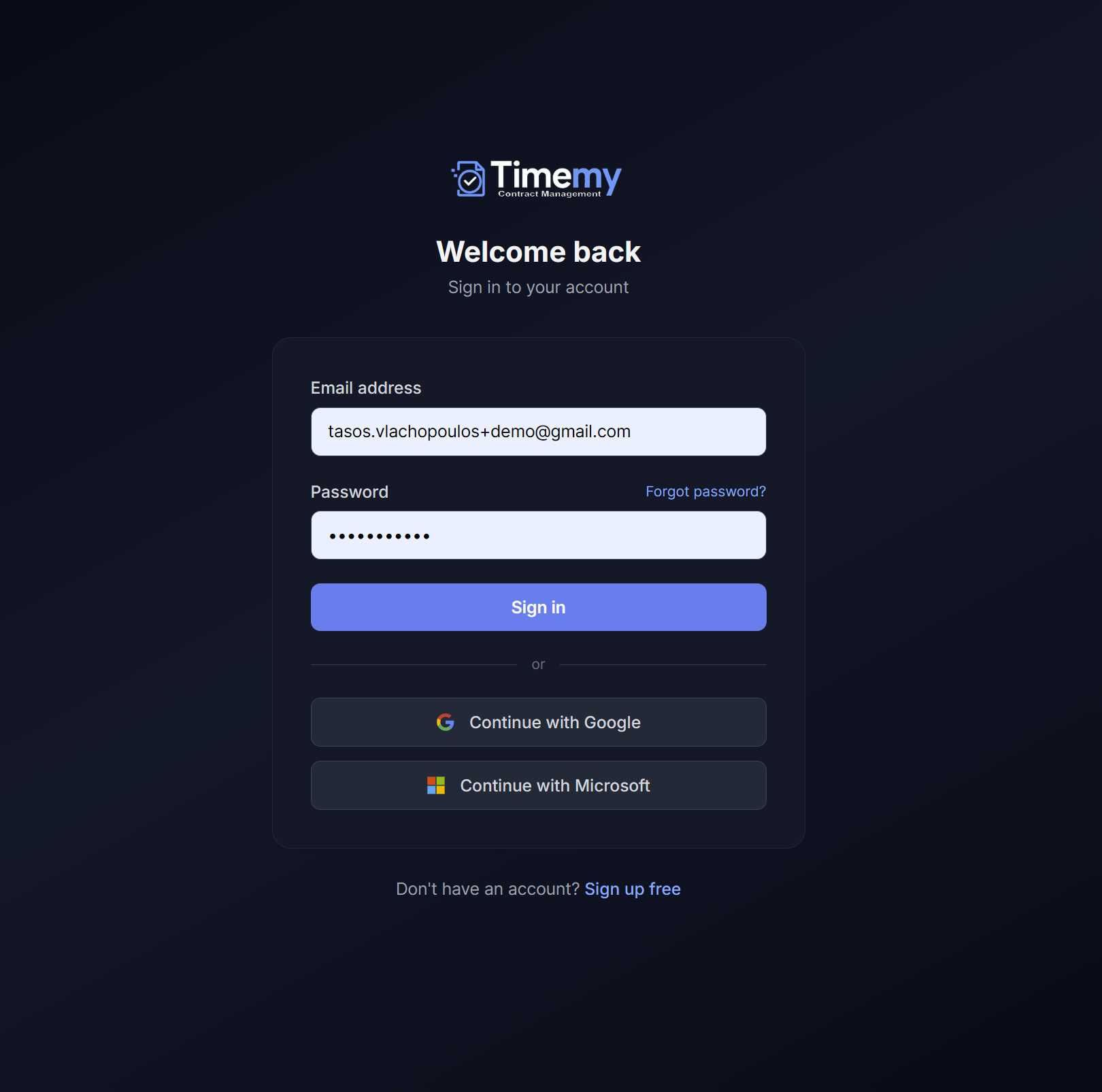
Signing in to Timemy is simple. Use your email and password or sign in instantly with an existing Google or Microsoft account — no extra password required.
Steps to sign in
- 1Go to timemy.com and click Sign in in the top-right corner.
- 2Enter your email and password, or click Continue with Google or Continue with Microsoft to use your existing account.
- 3You will land on your Dashboard — your central hub for all contract activity.
New to Timemy? Click Sign up free on the login page to create your account. The free plan covers up to 5 contracts with no credit card required.
Dashboard
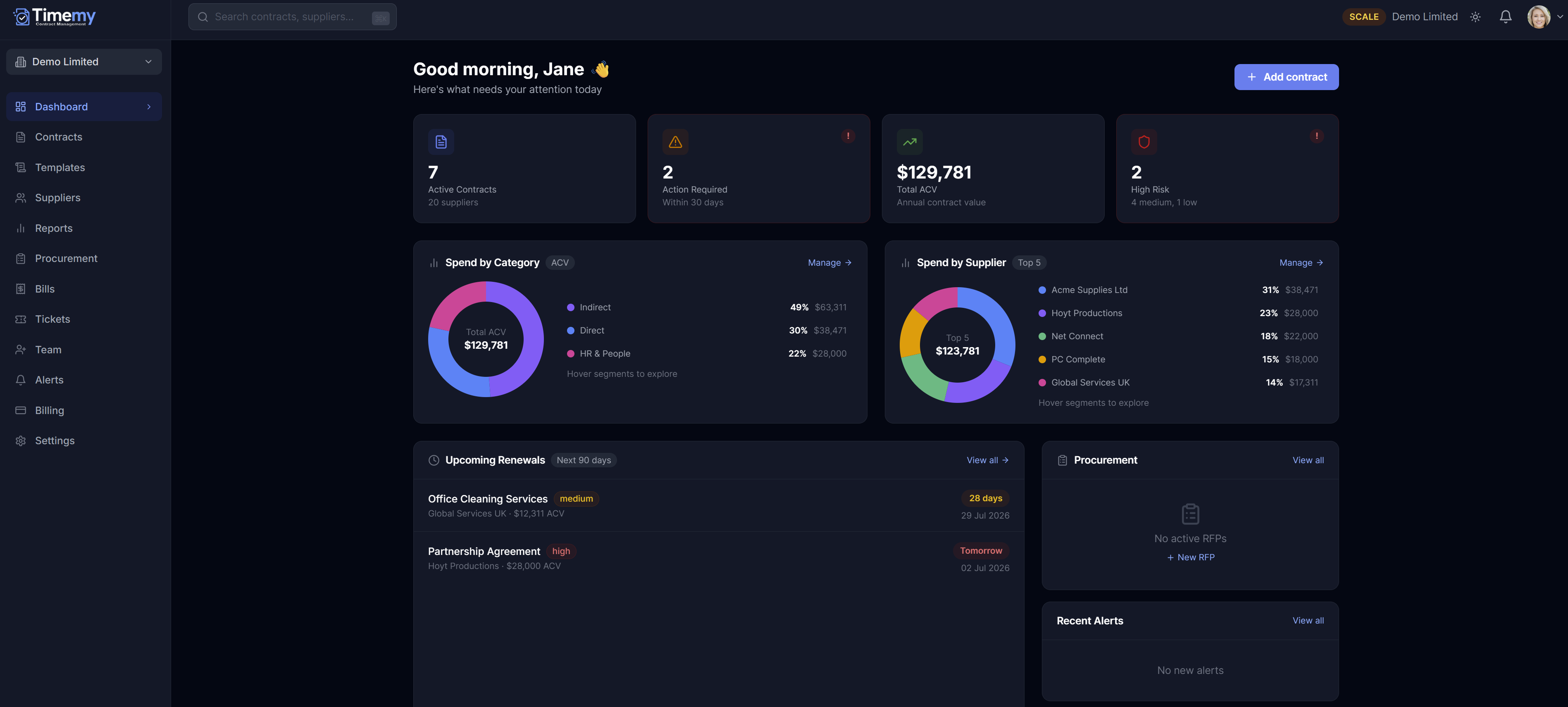
The Dashboard is your command centre. At a glance you can see how many contracts are active, what needs attention today, and your total spend across all suppliers.
Key panels
KPI Cards
Four headline numbers at the top: total active contracts, contracts requiring action, total annual contract value (ACV), and high-risk contracts.
Spend by Category
A donut chart breaking your contract spend into categories such as IT, Facilities, or Marketing — useful for spotting where budget is most committed.
Spend by Supplier
A bar chart ranking suppliers by total spend so you can immediately see your largest contractual commitments.
Upcoming Renewals
A prioritised list of contracts with renewal or notice deadlines approaching. The most urgent appear at the top.
Procurement
Tracks open purchase requests and approval workflows linked to your contracts.
Recent Alerts
A live feed of automated alerts — for example, when a notice deadline is 30 days away or a contract has expired.
The Action Required card links directly to contracts that need your attention right now — start here each morning for a quick daily triage.
Contracts
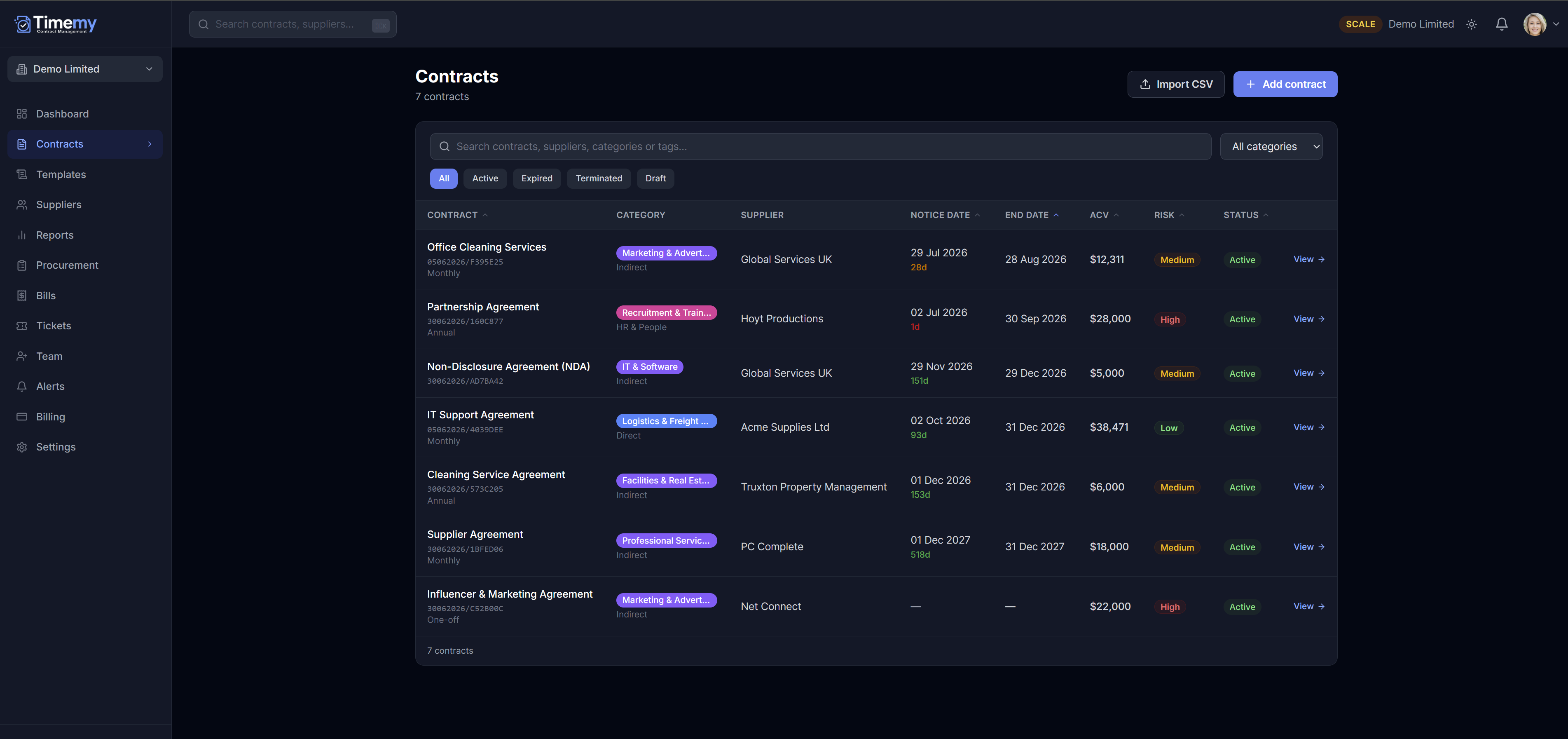
The Contracts section is where all your supplier agreements live. You can filter by status, search by name or supplier, and drill into any contract to see its full details, dates, and financial profile.
Adding a new contract
- 1Click Add contract in the top right of the Contracts page.
- 2Upload a PDF — or start from a blank contract.
- 3Timemy's AI extracts the key dates, parties, value, and notice period automatically. Review and correct anything it misses.
- 4Save. Your contract appears in the list with its notice deadline already calculated.
Bulk importing contracts
Migrating from a spreadsheet or another system? Use the bulk import wizard instead of adding contracts one by one.
- 1From the Contracts page, click Import.
- 2Upload a CSV exported from your ERP, purchasing system, or spreadsheet.
- 3Map your columns to Timemy's fields using the wizard, and preview the results before confirming.
- 4Confirm the import — suppliers are matched by name automatically, or created for you.
Contracts list
Use the filter tabs — All, Active, Expired, Terminated, Draft — to narrow down what you see. You can also filter by category using the dropdown in the top right.
| Column | What it shows |
|---|---|
| Contract | The contract title and the linked supplier name. |
| Category | The spend category — e.g. IT, Facilities, HR. |
| Notice Date | The deadline by which you must act if you want to renew or terminate. Shown in red when approaching. |
| End Date | The date the contract expires. |
| ACV | Annual contract value — the total annualised cost, calculated automatically from the billing frequency and amount. |
| Risk | Low, Medium, or High based on the legal and financial profile of the contract. |
| Status | Active, Expired, Terminated, or Draft. |
Contract detail
Clicking any contract opens its detail page. Everything you need — key dates, financial terms, legal clauses, and the linked supplier — is all in one place.
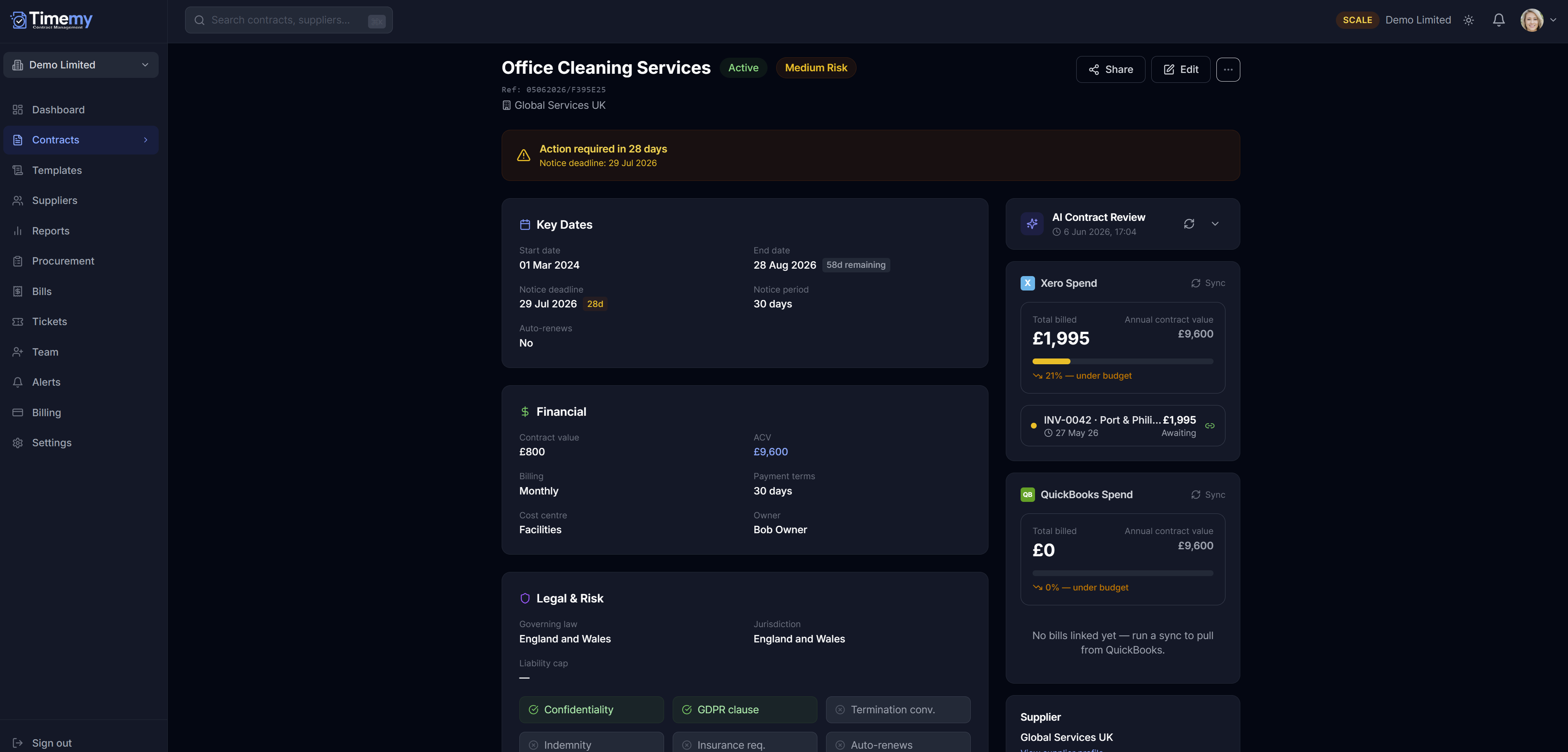
Key Dates
Start date, end date, and notice deadline displayed prominently. The notice deadline is calculated automatically: end date minus the notice period you set.
Financial
Monthly or annual value, ACV, and currency. If you have connected an accounting integration, matched actual spend from Xero or QuickBooks appears alongside the contracted amount.
Legal & Risk
A snapshot of the contract's legal profile: liability cap, GDPR clause, auto-renew terms, governing law, and an overall risk rating — Low, Medium, or High.
Supplier Panel
The linked supplier's key details appear in the sidebar, with a direct link through to their full supplier record.
Renewal & notice-period alerts
Once a contract has an end date and a notice period, Timemy calculates the notice deadline automatically and schedules alerts for you — there is no separate settings screen to configure.
90 days before
Early warning — plenty of time to review the contract and start a renewal decision.
30 days before
Time to decide — renegotiate, renew, or give notice before the window closes.
7 days before
Final reminder — shown as urgent on your Dashboard so nothing slips through at the last minute.
Alerts show up in the Dashboard's Recent Alerts feed and by email. If the SMS & WhatsApp add-on is enabled, each team member can also opt in to phone alerts from their profile settings.
When you upload a contract PDF, Timemy uses AI to extract the key dates, parties, and financial terms automatically. You can always review and correct the extracted values before saving.
Suppliers
The Suppliers section keeps a central record of every company you have a contract with. Each supplier record links to all their contracts, giving you a complete picture of the relationship in one place.
Suppliers list
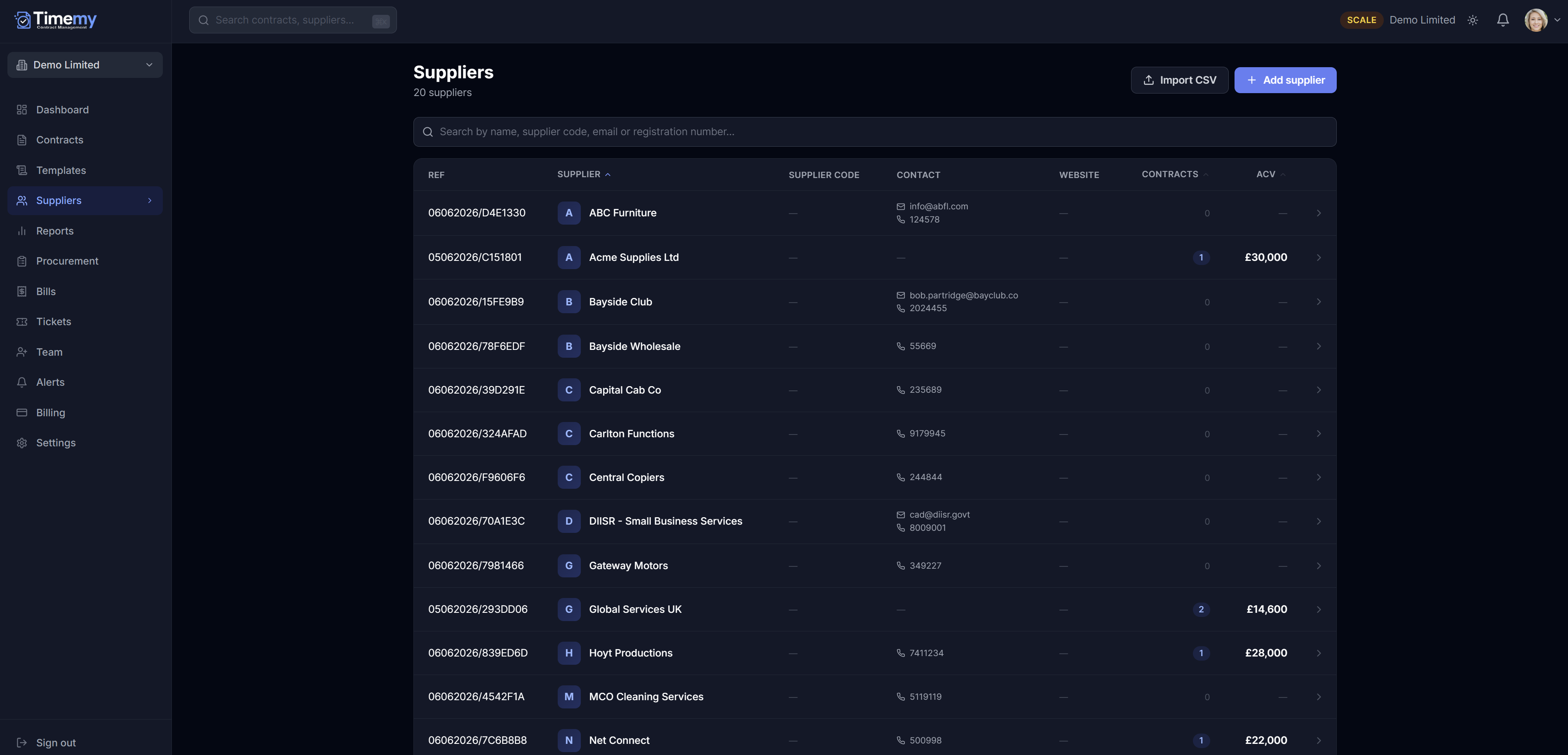
Adding or editing a supplier
Click Add Supplier to create a new record, or click any supplier row to open and edit it. The form is split into two sections:
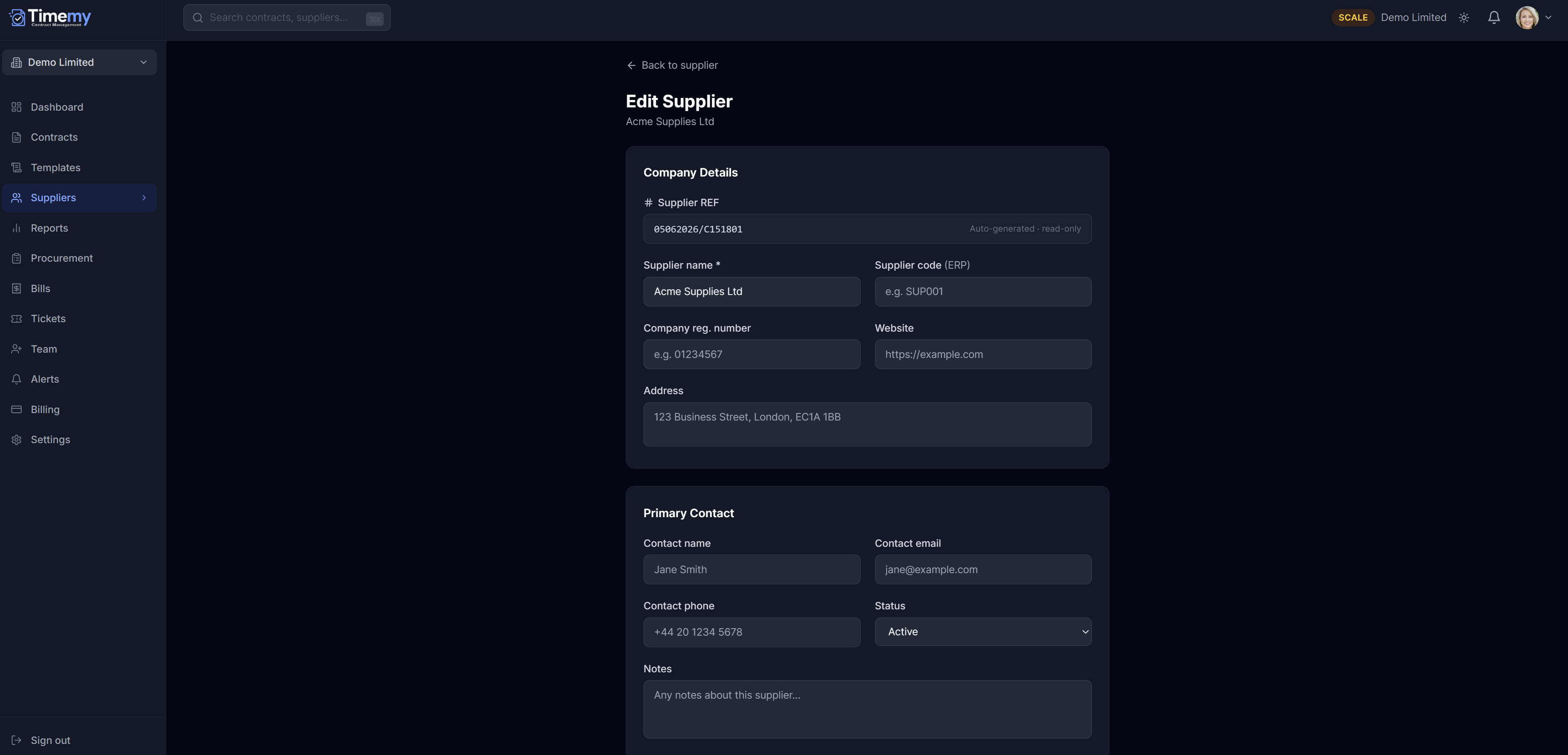
Company Details
- Supplier name
- Company registration number
- Website URL
- Business address
A unique Supplier Ref is generated automatically.
Primary Contact
- Contact name
- Email address
- Phone number
- Status and internal notes
This is the person you deal with for renewals and queries.
You can import multiple suppliers at once using a CSV file — look for the Import CSV button at the top right of the suppliers list.
Reports
Reports turn your live contract data into 10+ pre-built views across four categories — no setup required. Export any report to CSV in one click.
Overview
Contract Status Overview, Upcoming Renewals, Contract Expiry Timeline. Available on every plan, including Free.
Dates & Deadlines
Notice Period Monitor, Auto-Renew Alert Report, Expiry by Month. Available on every plan.
Financial
Spend by Category, Supplier Spend Breakdown, Annual Contract Value (ACV). Starter plan and above.
Risk & Compliance
Risk Register, Compliance Overview, Missing Clause Audit. Starter plan and above.
Seeing what's expiring soon
- 1Go to Reports in the left-hand menu.
- 2Under Overview, open Upcoming Renewals or Contract Expiry Timeline.
- 3Use the date range or category filters to narrow down what you're looking at.
- 4Click Export CSV if you need to share the list outside Timemy.
Growth and Scale plans also unlock a Procurement Audit Trail report, and Scale adds a 12-month rolling Spend Forecast.
Team
Team is where you invite colleagues into your workspace and control what they can see and do. Inviting colleagues is available on the Starter plan and above — the Free plan is owner-only.
Inviting a colleague
- 1Go to Team in the left-hand menu.
- 2Click Invite and enter their email address.
- 3Choose a role — see the roles below.
- 4Send the invite. They'll get an email to set up their account and join your workspace.
Roles at a glance
Director / Owner
Full access. Approves requests of any value and manages billing, company settings, and integrations.
Dept. Manager
Approves requests up to their own configured spending limit. Requests above it escalate automatically.
Requester
Creates and submits contracts and procurement requests for approval.
Viewer
Read-only access — can see contracts and reports but can't create or approve anything.
Seat limits depend on your plan: Starter includes 3 seats, Growth 5, and Scale 20. Upgrade from Billing if you need more.
Integrations
Connect Xero or QuickBooks Online to see real invoice spend alongside every contract — no spreadsheets, no manual reconciliation. Accounting integrations are available on the Growth and Scale plans.
Connecting Xero or QuickBooks
- 1Go to Settings, then select the Integrations tab.
- 2Under Accounting, click Connect next to Xero or QuickBooks Online.
- 3Sign in and authorise Timemy to access your accounting data.
- 4Once connected, click Sync Suppliers to import your contacts or vendors as Timemy suppliers.
What syncing gives you
Suppliers matched automatically
Your Xero contacts or QBO vendors are imported as suppliers, matched by name — no duplicates.
Bills matched to contracts
Timemy links each bill to the right contract automatically. Ambiguous bills are flagged for review.
Invoiced vs. ACV at a glance
Each contract shows total invoiced this year against its annual contract value, colour-coded.
Tracking categories & classes
Map a Xero tracking category or QBO class to any contract to filter spend the way you already do.
Need to connect an enterprise ERP like SAP Business One, Microsoft Business Central, NetSuite, or Sage? These are available on the Scale plan as a custom implementation — contact us for scope and timelines.
Templates
Timemy includes a library of ready-to-use contract templates. Instead of starting from a blank document, pick a template, fill in a few key details, and Timemy generates a pre-filled contract for you in seconds.
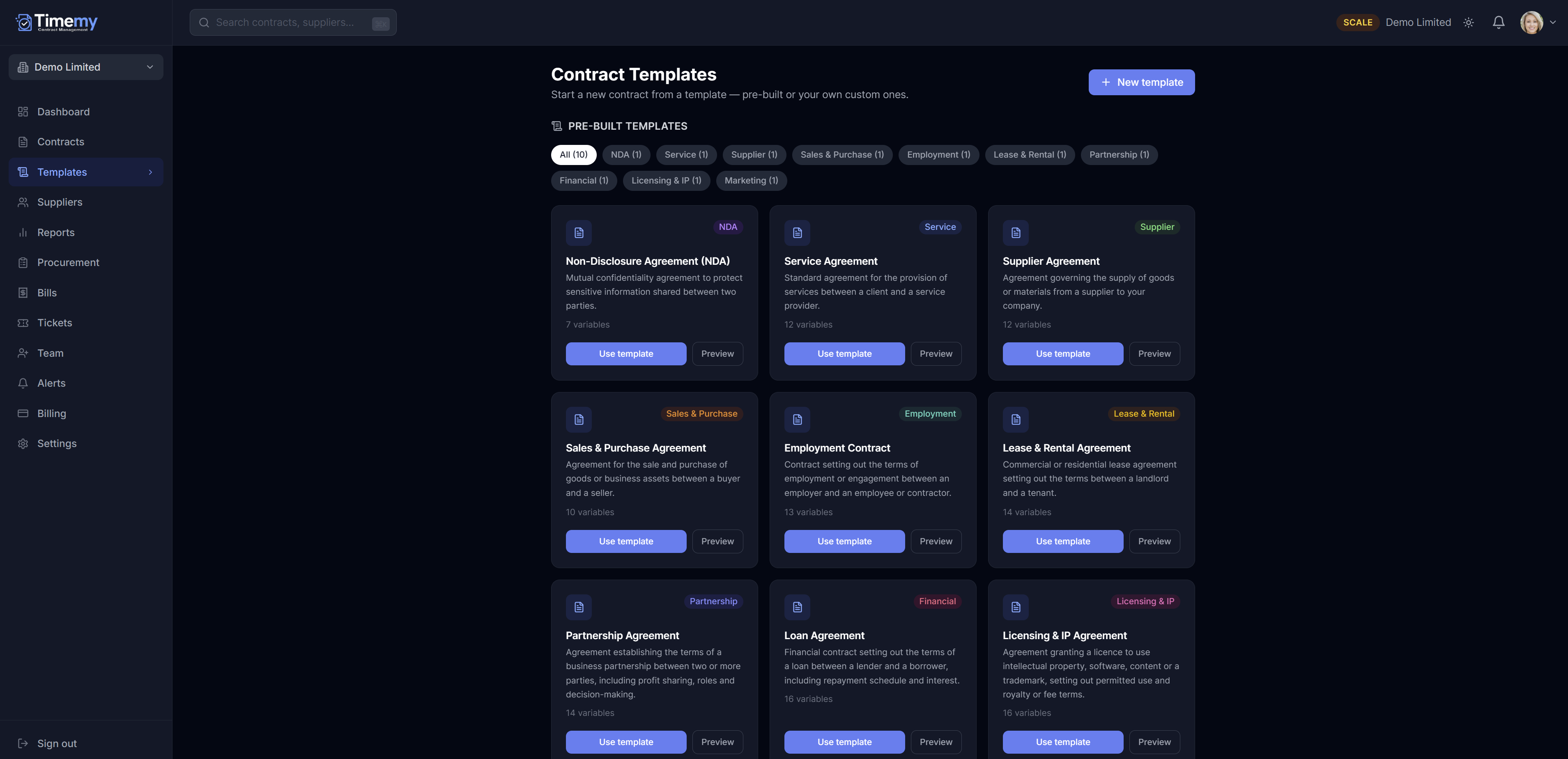
Available templates
Using a template
Click Use Template on any template card. Timemy asks you to fill in the key variables — your company name, the counterparty name, signatories, agreement dates, and governing law. These values are automatically substituted into every matching clause throughout the document.
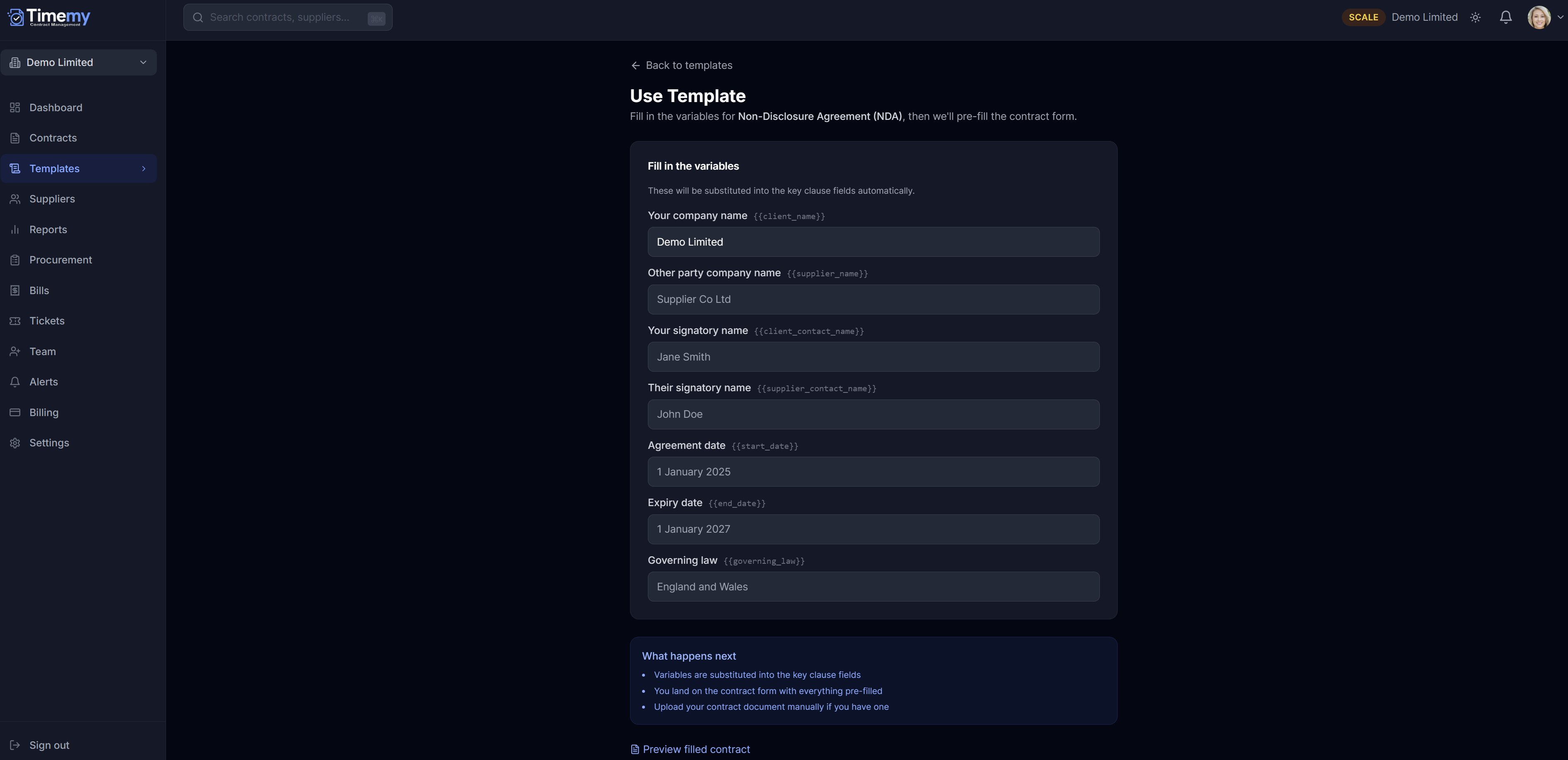
Templates are a starting point — they are not legal advice. Always review the generated document carefully and seek professional legal advice before signing any significant agreement.
Tickets
Tickets are tasks linked to your contracts — things like sending a renewal invoice, reviewing a draft agreement, or chasing a supplier response. The Kanban board makes it easy to see what is open, in progress, under review, and done.
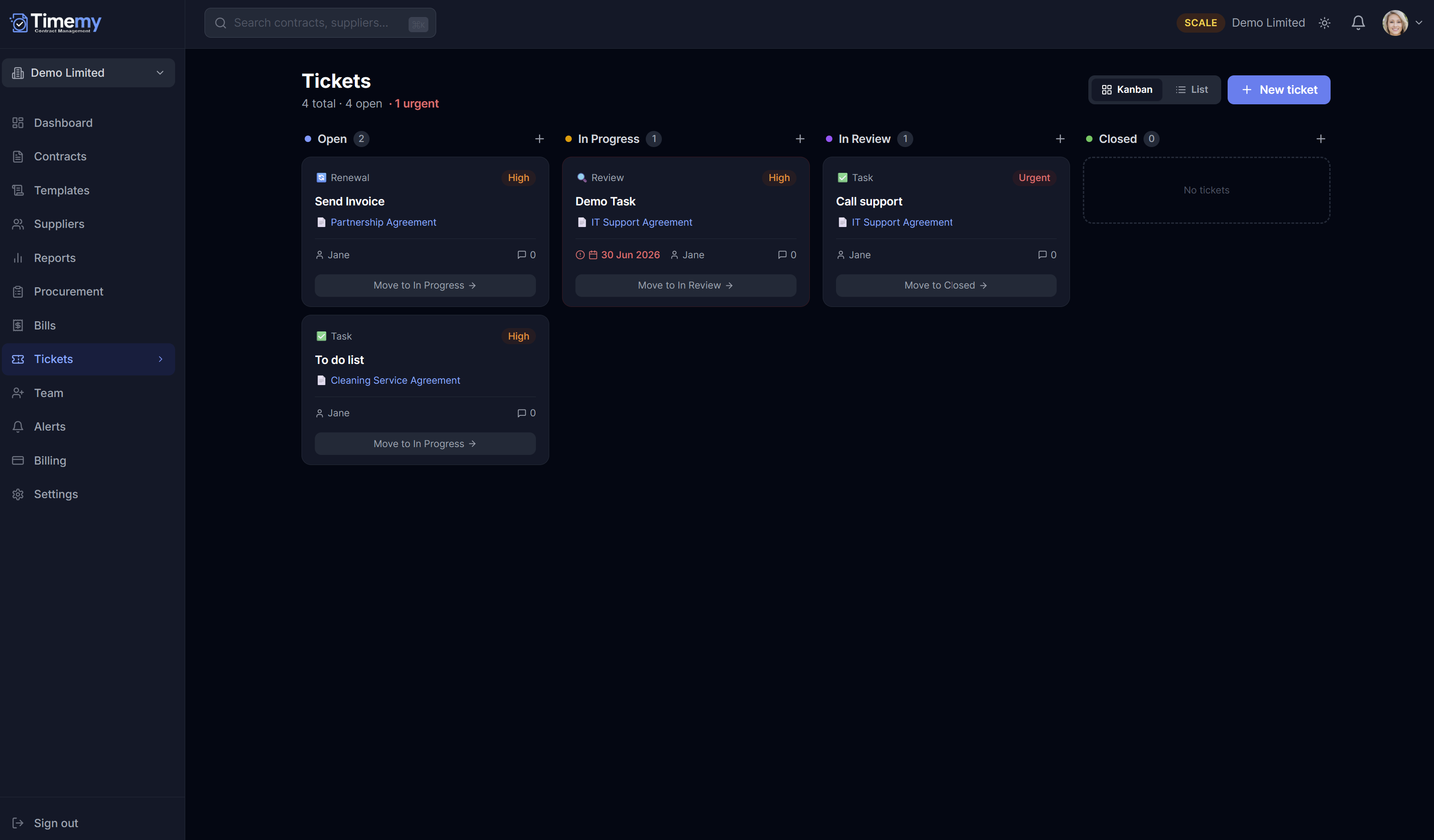
How the board works
Open
New tickets waiting to be picked up. Urgent priority tickets are highlighted in red so nothing critical gets missed.
In Progress
Tickets that someone is actively working on — move a card here as soon as you start.
In Review
Work that is complete but needs a second pair of eyes or approval before it can be closed.
Closed
Fully resolved tickets. Timemy keeps a searchable history so the full audit trail is always available.
Ticket types and priorities
Each ticket has a type — Renewal (triggered by an approaching renewal date), Review (a contract that needs checking), or Task (a general action item) — and a priority of High or Urgent. Tickets can be linked to specific contracts so context is always one click away.
Click New ticket in the top right of the Tickets page to create a task manually. You can also view tickets as a flat List instead of the Kanban board — handy for bulk sorting.
Video walkthroughs
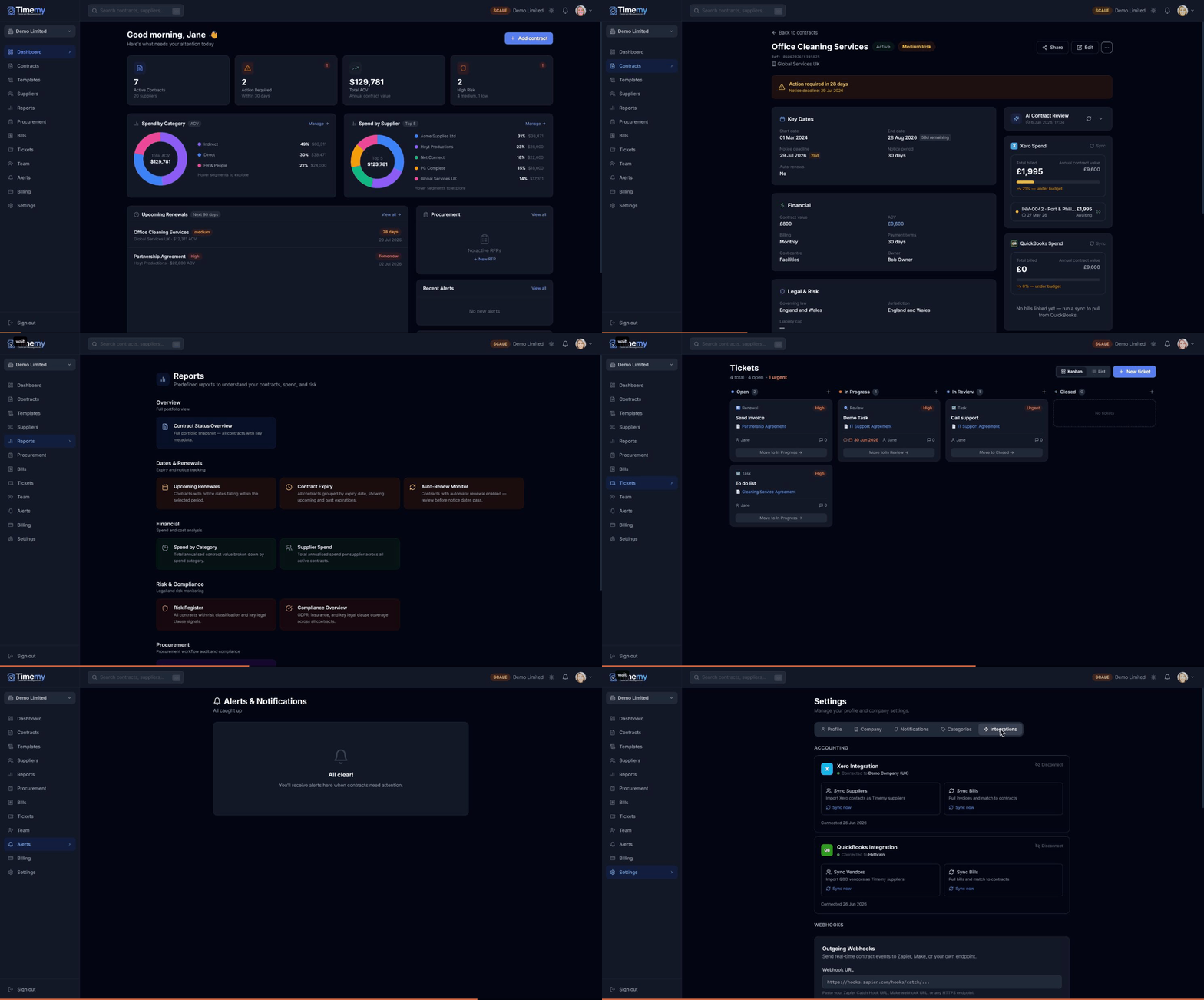
Prefer to watch rather than read? These animated walkthroughs cover the full app end to end.
Full app walkthrough
Detail pages and forms